How to Download Pinterest Images in Original Quality (Not the Blurry Preview)
Short answer: Yes, you can get the full-resolution original — but probably not with the method you're using now. What you see while scrolling Pinterest is a compressed preview, and the usual ways of saving (long-press on mobile, right-click on desktop) often grab that preview instead of the real file. Pinterest does host the original-quality image; you just need to fetch that specific version. Here's how the whole thing works and the reliable way to get the sharp file.
Frequently asked questions
Why are my saved Pinterest images blurry?
You almost certainly saved the compressed preview rather than the original file. Long-press saves and right-clicks typically grab whichever rendition is displayed, which Pinterest keeps small for fast loading. Download the pin through an image downloader to get the full-resolution version instead.
What is the highest resolution Pinterest stores?
It depends entirely on what the creator uploaded — Pinterest preserves the original upload. There isn't a single "max" number; some originals are modest, others are very large. The downloader gives you the best rendition available for that specific pin.
Can I download a Pinterest image in HD if the original was low quality?
No — and be skeptical of any tool claiming otherwise. If the upload was 500 pixels wide, that's the ceiling. "Original quality" means the untouched original, not an AI-upscaled reconstruction.
Does downloading the original use more data or storage?
Yes, naturally — full-resolution files are bigger than previews. On mobile data, that's worth knowing. On Wi-Fi, it's a non-issue for single images.
Do I need an account to download full-quality images?
No. The original file is served from the pin's public page, so no login is required — just the pin's link.
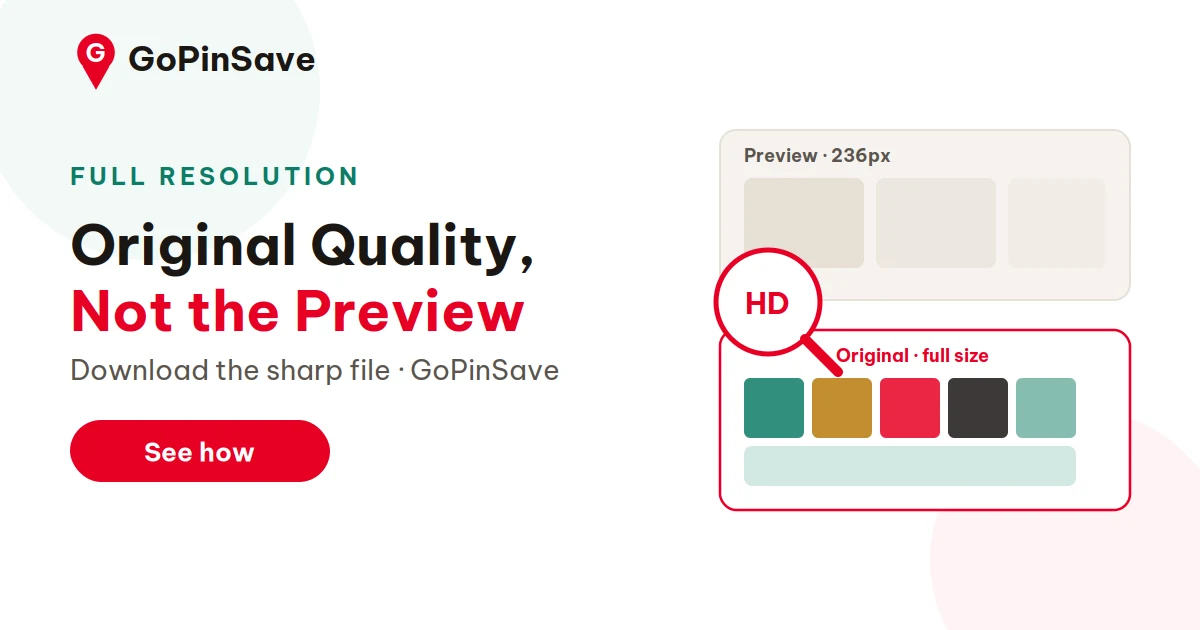
Short answer: Yes, you can get the full-resolution original — but probably not with the method you're using now. What you see while scrolling Pinterest is a compressed preview, and the usual ways of saving (long-press on mobile, right-click on desktop) often grab that preview instead of the real file. Pinterest does host the original-quality image; you just need to fetch that specific version. Here's how the whole thing works and the reliable way to get the sharp file.
If you've ever saved a Pinterest image and wondered why it looks soft, slightly blocky, or just "off" compared to what you saw on screen, this is why. It's not your eyes. It's the preview.
Why Pinterest images look sharp on screen but save blurry
Pinterest is engineered for fast scrolling. To keep the feed snappy on slow connections, it serves you lightweight, compressed versions of every image — small files that load instantly. When you tap a pin to open it, you get a somewhat better version, but still not necessarily the original upload.
Behind the scenes, Pinterest keeps several renditions of each image on its servers: the tiny feed preview, a medium version for the pin page, and — for most pins — the original file the creator uploaded, at full resolution. The catch is that your browser and the Pinterest app default to showing and saving the smaller ones.
So there are really two different "save" outcomes:
- The preview save: long-pressing an image in the app or right-clicking in a browser often captures the rendition currently displayed — the compressed one. Fine for a mood-board thumbnail, disappointing as a wallpaper or print reference.
- The original download: fetching the full-resolution file Pinterest stores. Same image, dramatically more detail.
The difference is most visible on images with fine detail — text, textures, intricate illustrations, photography. On a flat graphic with big shapes you might never notice. On a detailed artwork, it's night and day.
The limits of "original quality"
Here's the part most downloader sites won't tell you: "original quality" means the best version Pinterest has, not magic enhancement. If the creator uploaded a 600-pixel-wide image, the original is 600 pixels wide. No tool can invent detail that was never uploaded — any site promising to "HD-enhance" your download is selling you an upscale, not the true original.
What a good downloader does is simpler: it finds the highest-resolution rendition Pinterest actually hosts for that pin and gives you that file, untouched. No recompression, no fake upscaling.
How to download the original-quality image
The reliable method takes three steps:
- Open the pin (not the feed preview — tap through to the pin page) and tap Share → Copy link.
- Paste the link into GoPinSave's Pinterest image downloader. The tool reads the pin and surfaces the full-resolution file.
- Download. What you get is the original-quality image as hosted — not the compressed preview your browser was showing.
This works for single-image pins and, just as usefully, for multi-image pins: our carousel downloader pulls every image in a carousel at full resolution, so you don't have to save them one painful tap at a time.
A practical tip: after downloading, check the file's dimensions before you use it for anything important. On most devices you can see this in the file info or photo details. If the "original" is smaller than you hoped, the pin was simply uploaded small — and now you know not to waste time hunting for a bigger version that doesn't exist.
What about screenshots?
Screenshots are the worst option for quality, and it's worth saying plainly. A screenshot captures your screen — the compressed preview, at your screen's resolution, possibly with interface elements around it. It's two generations removed from the original file. Screenshots are fine for "remember this idea" notes. They're terrible for anything where sharpness matters.
How to tell which version you actually have
Not sure whether the file on your device is the preview or the original? Two quick checks:
- Check the dimensions. Open the image details (on iPhone: Photos → swipe up on the image; on desktop: file properties). A preview save is often a few hundred pixels wide; an original is typically 1000+ pixels on the long edge. If the number looks small for the image's subject, you got the preview.
- Check the file size. Previews are aggressively compressed — tens of kilobytes. Originals run into the hundreds of kilobytes or megabytes. A "full quality" download that's 40 KB is lying to you.
There's also a visual tell: zoom into the image at 100%. Previews fall apart into blocky compression artifacts around edges and gradients; originals hold together. Once you've seen the difference side by side, you'll recognize a preview save instantly — and you'll never settle for one again when the original is available.
What about Pinterest's "HD" or zoom view?
Tapping a pin to open it full-screen shows you a better rendition than the feed — but "looks sharp on my phone" still isn't proof it's the original. Phone screens are small and forgiving; a 736-pixel image looks flawless on a 6-inch display and mediocre as a desktop wallpaper. The zoomed view is Pinterest being generous with previews, not handing you the source file. If the image matters — print, design work, detailed reference — download the original through the method above and check its actual dimensions instead of trusting your eyes on a phone screen.
Get the original: Paste the pin link into GoPinSave's image downloader and download the full-resolution file — not the compressed preview.
The bottom line
Blurry Pinterest saves are a pipeline problem, not a quality problem — the sharp file exists on Pinterest's servers in nearly every case; the usual saving methods just don't reach it. Once you spot the difference between a preview and the original, you'll recognize it everywhere: the long-press that grabs a thumbnail, the screenshot that captures your screen instead of the file, the feed image that was never meant to be the final file. The fix is always the same motion — open the pin, copy the link, fetch the original — and after the third or fourth time it becomes muscle memory. Check dimensions when it matters, accept the ceiling when the upload was small, and never let a preview stand in for the real file again.