Pinterest Video Quality Explained: Resolution, Limits, and Getting the Best File
Short answer: The best video quality Pinterest offers is 1080p (1920×1080). There is no 4K on Pinterest — not for viewing, not for downloading, no matter what a downloader site claims. Most video pins also come in lower renditions (720p, 480p), and which one you get depends on what the creator uploaded and which version you grab. Understand the ladder, and you'll never settle for a blurry copy again.
Frequently asked questions
What is the maximum video quality on Pinterest?
1080p (1920×1080). Pinterest does not offer 4K video for viewing or downloading, regardless of what the creator originally uploaded.
Why does the downloader only show 720p for my video?
Because 720p is the highest rendition Pinterest generated for that pin — the creator likely uploaded at 720p or lower. No tool can produce a higher-quality version than Pinterest hosts.
Is a "4K Pinterest downloader" real?
No. Any site claiming 4K Pinterest downloads is either mislabeling 1080p or upscaling. The genuine ceiling is 1080p, so "4K" in this context is marketing, not a technical reality.
Does downloading reduce video quality?
Not if the tool fetches the source file directly. A proper downloader hands you Pinterest's own file untouched — same resolution, same compression, no additional quality loss. Quality only drops if the tool re-encodes the video or grabs a lower rendition.
Why do vertical videos look worse on my computer?
Most Pinterest videos are vertical (9:16), optimized for phone screens. Played fullscreen on a wide monitor, the player stretches a narrow image across a big display. The file is fine — the viewing context is just unforgiving.
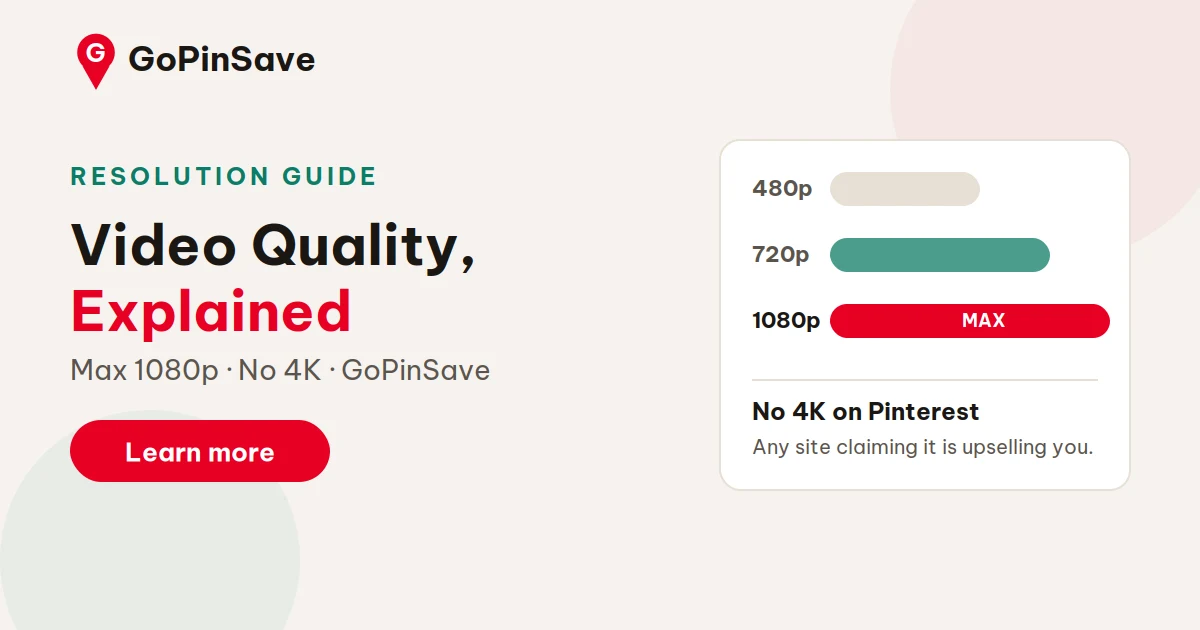
Short answer: The best video quality Pinterest offers is 1080p (1920×1080). There is no 4K on Pinterest — not for viewing, not for downloading, no matter what a downloader site claims. Most video pins also come in lower renditions (720p, 480p), and which one you get depends on what the creator uploaded and which version you grab. Understand the ladder, and you'll never settle for a blurry copy again.
Video quality confusion is rampant in the downloader world, mostly because some sites promise "HD" and "4K" as marketing words rather than technical facts. Let's set the record straight with how Pinterest actually handles video.
The resolution ladder
Every video pin on Pinterest exists in multiple renditions — the same video encoded at several quality levels. Think of it as a ladder:
- 1080p (1920×1080) — the top rung, available when the creator uploaded HD footage
- 720p (1280×720) — the common middle ground
- 480p and below — smaller files for slow connections and feed previews
When you watch a pin, Pinterest picks a rung automatically based on your connection and screen. When you download, you should pick the highest rung available — because a downloader that grabs the 480p preview gives you a file that looks noticeably worse than the pin you were just watching.
Here's the key point most people miss: the ladder only goes as high as the original upload. If a creator uploaded a 720p video, there is no 1080p version hiding on Pinterest's servers. The top available rendition is the quality ceiling for that pin. This is why two pins can look completely different at "maximum quality" — they started from different sources.
Why there's no 4K on Pinterest
Pinterest simply doesn't serve 4K video. Even if a creator uploads a pristine 4K master, Pinterest's processing caps the delivered renditions at 1080p. The platform is built for discovery scrolling, not cinema — 1080p is the sweet spot where quality meets fast loading on mobile connections.
So when a downloader site advertises "Download Pinterest videos in 4K," treat it as a red flag. At best, it's sloppy marketing for what is actually a 1080p file. At worst, it's upscaling the 1080p file and pretending the invented pixels are genuine detail. Either way, you're not getting true 4K, because Pinterest never had it to give.
A good tool tells you the actual available resolutions and lets you pick. GoPinSave's Pinterest video downloader lists the renditions Pinterest really serves for each pin — 1080p when it's there, 720p when that's the top — so you always know exactly what you're getting.
Why a pin looks blurry (it's not always the download)
Before blaming your downloader, consider the other suspects:
- The upload was low quality. A 480p source can never become sharp. This is the most common cause of disappointing downloads.
- You grabbed a preview rendition. Feed previews and thumbnails are small by design. Always download from the pin page's link, not from a feed thumbnail.
- The creator's edit is soft. Heavy filters, aggressive compression in their editing app, or text overlays can make even a 1080p file look mushy.
- Your player is upscaling. Watching a 720p file fullscreen on a large monitor will always look softer than on a phone — that's your screen, not the file.
A useful habit: compare the downloaded file against the pin as it plays on Pinterest. If they look the same, your download is fine — the pin itself is just soft. If the download looks worse than the pin, you grabbed the wrong rendition and should re-download at the highest available quality.
Getting the best quality every time
The workflow is short:
- Open the pin itself (tap through from the feed) and copy its link via Share.
- Paste it into the downloader and look at the quality options before hitting download.
- Pick the highest resolution listed — that's the best Pinterest has for this pin.
- Save, and compare against the on-platform playback as a sanity check.
One more thing worth knowing: video format and video quality are different questions. A pin can be a perfect 1080p MP4 or a fragmented stream depending on its type — our guide to Pinterest video formats explains what you're actually downloading under the hood.
Bitrate: the hidden half of quality
Resolution gets all the attention, but bitrate — how much data is spent per second of video — matters just as much. A 1080p video starved of bitrate looks worse than a generous 720p encode: blocky shadows, smeared motion, mushy gradients. Pinterest re-encodes uploads to its own bitrate targets, which are tuned for mobile streaming, not archival fidelity.
What this means for you: two pins both labeled "1080p" can look noticeably different, and neither you nor any downloader can fix it. The file is what Pinterest made of the upload. When a download looks softer than expected despite being the top rendition, low source bitrate — usually from the creator's own export settings — is the likely culprit. Downloading at maximum available quality remains the right move; it just can't recover data that was discarded upstream.
Upload specs for creators (get the best from Pinterest)
If you're uploading video to Pinterest and want it to survive processing beautifully:
- Export at 1080p or higher. Pinterest downsamples to 1080p max, but starting higher gives its encoder more to work with.
- Use a high bitrate. 10–12 Mbps for 1080p is a good target — most editing apps' "high quality" presets land here.
- H.264 + AAC is the native expectation; exotic codecs get transcoded harder.
- Keep it vertical (9:16) for feed pins. Pinterest is a vertical-first platform, and vertical uploads avoid awkward auto-cropping.
Then verify: download your own pin through GoPinSave afterward and compare against your master file. If the platform version holds up, your export settings are dialed in.
Get the best version: GoPinSave's video downloader lists every quality Pinterest actually serves for your pin — pick the top one and never settle for a blurry copy.
The bottom line
Video quality on Pinterest is a chain with three links — what the creator uploaded, what Pinterest's processing made of it, and which rendition you download — and the final file is only as strong as the weakest one. You control the last link completely: always fetch from the pin page, always pick the top rendition, always sanity-check against on-platform playback. The first two links are out of your hands, which is why realistic expectations matter more than any tool: no downloader rescues a soft upload or invents a 4K that never existed. Judge a pin by what Pinterest actually serves, grab the best of it, and you'll never settle for a lower-quality file again.